How to download a program from GitHub: find the installer, portable ZIP or individual file
A beginner's guide to GitHub Releases using LocalSend. Find the right Windows or Mac download, tell a portable ZIP from source code, and check what you received.

To download a ready-to-use program from GitHub, open the project's official repository, follow Releases, choose a stable version and look under Assets. That's where a publisher can attach installers and packaged applications. If you only need a particular document, open that file in the repository and use Download raw file. The green Code → Download ZIP button is useful when you want the project files together.
We'll use LocalSend, a free app for sending files between nearby devices over a local network. Suppose you want to move a video from an Android phone to a Windows laptop. On GitHub, two downloads for the same LocalSend version come as ZIP files. One contains a Windows application you can run. The other contains the source used to build it. We opened both, inspected the Mac disk image and checked four published file digests. If you need the app immediately, here are the LocalSend 1.19.0 release and the project's download page.
Make sure you have the right repository
A repository is a project's working collection of files, together with a record of changes. In github.com/localsend/localsend, the first name identifies the owner, and the second identifies the repository. Another developer can make an independent copy and keep the same repository name. If someone sends you a link to a tool you have never used, start at the publisher's website and follow its link to GitHub. Compare the owner, the linked homepage and the project's description. In this case the description should be about moving files between nearby devices. LocalSend's repository.
The first screen contains file names, directories and recent changes. Scroll down to the README, the introductory document maintained by the project. Look for headings such as Download or Installation, or a table of supported platforms. This tells you whether the project has a regular desktop interface and how the publisher distributes it. Some projects direct you to Releases. Others point to an app store or a package manager. LocalSend offers several routes. If you want it on a phone, the store link from the official website will usually save you a trip through a long list of release assets.
Where is GitHub's download button?
- Open Releases from the repository homepage. On a wide screen, the link is usually to the right of the file list. On a narrow screen that section can appear farther down. A download link in the README is another way in.
- Find the release marked Latest. Check its version and read the first lines of the notes. Pre-release marks a version the publisher is offering ahead of a regular release. A stable version is usually the simpler starting point for a first installation.
- Scroll past the release notes to Assets and expand the list if it is collapsed. The count includes different platforms, package types and archives. On the release we checked, GitHub showed 25 entries.
- Click the filename you want. A nearby button may copy the file's digest to the clipboard. If nothing appears in your downloads after a click, check which control you used.
Release notes can be long. LocalSend 1.19.0 lists many changes and contributors before the files appear. Search the page for Assets with Ctrl+F or ⌘F, open the section, then look for windows or .dmg. For a future update, bookmark the project's Releases page as well as any version-specific link you need for a tutorial. A link to a particular installer continues to point to that version after a newer one is published. GitHub's explanation of releases.
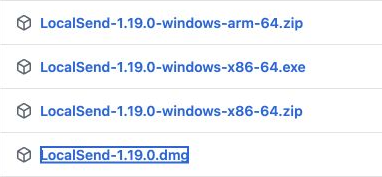
Which file should I choose for Windows, Mac or a phone?
| What you want | What to look for in LocalSend 1.19.0 | Next step |
|---|---|---|
| A regular installation on Windows x64 | LocalSend-1.19.0-windows-x86-64.exe |
Check the download and open the installer |
| A ready-to-run folder for Windows x64 | LocalSend-1.19.0-windows-x86-64.zip |
Extract the entire folder, then open localsend_app.exe |
| A package for Windows on ARM | LocalSend-1.19.0-windows-arm-64.zip |
Choose the ARM build and extract it completely |
| The graphical Mac application | LocalSend-1.19.0.dmg |
Open the image and move the app to Applications |
| The project's source for this release | Source code (zip) |
Open the project folder to read or build it |
On Windows, go to Settings → System → About and find System type. The names x64, x86-64 and amd64 refer to the same architecture. A build labelled this way can be the right one for a PC with either an Intel or an AMD processor. For a Windows machine with an ARM processor, look for arm64 or aarch64. The words “64-bit” alone aren't enough to distinguish the two families. Find your Windows device information.
On a Mac, choose Apple menu → About This Mac. A chip named Apple M followed by a number is Apple silicon. An older machine may list an Intel processor instead. When a project offers separate Mac packages, arm64 normally means Apple silicon and x86_64 means Intel. Some applications ship one universal build. LocalSend's DMG has no architecture in its filename. Inspection of the executable inside LocalSend.app showed both x86_64 and arm64. The separate archive with CLI in its name contains the command-line client. Identify a Mac with Apple silicon.
There are multiple Android APKs in this release. If you don't know your phone's architecture, start with the project's download page and its link to the appropriate store. On an iPhone, follow the project's iOS distribution link. An Android APK cannot serve as an iPhone installation package. Also consider which device will ultimately run the app. Your phone may happily save a Windows download, but you will still have to take that file to the Windows computer before it can be used.
Inside two ZIPs and a disk image
We checked v1.19.0, released November 24, 2026. The portable Windows ZIP contained 61 archive entries. At the top level we found localsend_app.exe and flutter_windows.dll. A data directory held application resources. The executable header confirmed x64. This explains why extracting one tempting-looking EXE can fail: the application was packaged with nearby files it expects to find. Extract the lot, then create a shortcut to the executable if you want it on your desktop.
The archive labelled Source code (zip) has a different layout. Inside its localsend-1.19.0 folder are README.md, app/pubspec.yaml and app/lib/main.dart. Our search found no localsend_app.exe in it. If this is the download you already have, the archive itself is fine. Return to the same release and choose either the Windows installer or the portable ZIP from the table. Building the project yourself is a separate task for someone who wants to change the code or needs a build the publisher does not distribute.
We mounted the Mac image read-only. It contained LocalSend.app version 1.19.0 and an Applications shortcut. For comparison, we opened LocalSend-CLI-1.19.0-macos-arm-64.tar.gz and found the localsend-cli command. We did not execute the installers or benchmark transfers between two devices. This test answers a narrower question that matters before installation: what exactly did you download? Files and notes for the inspected version.
Download a single file, a folder or the whole repository
One file. Click its name in the repository. Use the raw-file download control above the contents, or open Raw and save the result. We downloaded the raw README.md from tag v1.19.0 and compared it with the README in the source archive. The contents matched byte for byte. Saving the browser page while you are still looking at GitHub's code viewer can produce an HTML page with navigation around it. That will be a problem if a spreadsheet or a tool is expecting the contents of a CSV, JSON or Markdown file. The raw README we checked · GitHub's file download guide.
One folder. For a small public project, download the archive for the required version, extract it and keep the directory you need. For example, you could open app/lib to study the LocalSend interface. That directory alone would not give you an application ready to run. It refers to resources and dependencies elsewhere in the project. If someone linked you to a template or an example, check its own README for companion files before copying a single folder out of the tree.
The complete project. On the Code tab, select the branch you want and choose Code → Download ZIP. This gives you a snapshot of the files on that branch. If you are following a tutorial, an archive tied to its release or tag is often easier to reproduce because the active development branch keeps moving. The ZIP does not contain the full commit history. Cloning with Git makes sense when you want to receive further changes or contribute your own. Neither Git nor GitHub Desktop is required for a one-off public installer download. GitHub's guide to branch, tag and commit archives.
Verify a download and understand what is free
GitHub displays a SHA-256 digest alongside the uploaded files in this release. It is a fingerprint of a file's contents. On Windows, open PowerShell in the folder containing the download and run the command below. On a Mac, run shasum -a 256 LocalSend-1.19.0.dmg in the folder containing the disk image. Compare the result with the entire digest copied from the corresponding asset in the release. The installer and portable archive are different files and should have different hashes.
Get-FileHash -Algorithm SHA256 .\LocalSend-1.19.0-windows-x86-64.zip
Here is the full SHA-256 digest of the portable Windows ZIP we inspected.
1b131a225e30bb46c7b4ffee23577716b2d0605108aded27899375033ff69abc
Four downloads matched their published digests: this ZIP, the Windows x64 installer, the Mac disk image and the Mac ARM command-line archive. A match establishes that you obtained the same bytes as the asset on the release page you selected. Deciding whether you trust that publisher starts earlier, with the link from the project's website. If the operating system reports a signing or publisher problem, check the author's installation guidance and the version you chose. PowerShell Get-FileHash reference.
A public LocalSend release can be downloaded free of charge without a GitHub account. The project distributes the application for free under the Apache 2.0 licence. Another project may charge for compiled versions, sell a cloud service or publish a library that needs a paid API. Check the chosen product's README, licence and pricing page. There is a related distinction in our guide to offline speech recognition: the program also needs a separately downloaded model. See our Hugging Face guide for how to choose that file.
FAQ
Why is there no EXE in my GitHub download?
Check which link you used. Source code and Code → Download ZIP provide project files. Look for a Windows build in Releases. If there isn't one, read the Installation section. The author may distribute the program through a store or package manager, or may only publish source.
Can I download from GitHub without signing in or opening a terminal?
Public files and public releases can normally be downloaded in a browser. The Assets list in our test was visible while signed out. A private repository requires an account with permission to access it. Running a checksum command is optional for the download itself.
How do I update a program I downloaded from GitHub?
Follow the update method in its README. LocalSend's maintainers recommend a store or package manager for convenient updates because the application has no general built-in auto-update. With a manual installation, go back to Releases, compare versions and choose the same kind of package for your system. LocalSend's distribution notes.
 Tools
 Tools
 Tools